
Messaging program disclosure
Urgent text alerts
Handled lets the owners and admins of a business that uses Handled optionally receive a text when something on their own schedule needs them right away — a new booking request that needs their approval, or a customer cancelling or asking to reschedule a confirmed appointment that starts within the next 24 hours. This page publishes the consent language, the opt-in flow and the opt-out, so they can be reviewed without an account.
No one is enrolled from this page.
This is a published description of a consent flow that happens elsewhere. There is no form here, no field to type a number into and nothing to submit. Text alerts can only be turned on by a person already signed in to a Handled account, for their own phone.
Who these messages go to
Only to a person who signed in to Handled, opened their own notification settings, ticked the option below and confirmed their own mobile number with a code sent to that handset.
They do not go to the customers of the businesses that use Handled. Those are separate messages under separate consent, described in our Messaging Terms and TCPA Compliance pages. Nobody is added to staff alerts by an employer, by an administrator, by a list upload, or as a side effect of signing up.
These are not marketing messages
Urgent text alerts tell somebody something happened in the account they already work in. They do not advertise Handled, they do not promote plans or upgrades, and they do not carry anybody else's advertising. Phone numbers given for alerts are used to send those alerts and are never sold, rented or shared with third parties for marketing.
Declining costs the recipient nothing: everything an alert can say is also available inside Handled on the web and by email, which stay on whether or not texts are used. That is what makes the option genuinely optional rather than nominally optional.
What the alerts are about
Subjects the staff text-alert model can enforce (4). Before enrollment, every category starts off. The first explicit opt-in turns the named active urgent categories on by default; if the recipient later turns a category off in Settings, that OFF preference is preserved when they enroll again. Nothing is sent for a subject the opt-in screen does not name, and nothing is sent while outbound owner-alert delivery is disabled (see program summary):
- New booking requests needing approval — a customer submitted a booking request that still needs the owner to confirm or decline.
- Customer cancellations within 24 hours — a customer cancelled a confirmed appointment that starts within the next 24 hours.
- Customer reschedule requests within 24 hours — a customer asked to reschedule a confirmed appointment that starts within the next 24 hours.
- Calendar sync problems — a connected calendar stopped syncing — a subject the model can enforce that is NOT sent as an urgent text alert today (the schedule stays correct, so nothing prevents call or lead handling); it appears here so the list matches the product's vocabulary, not to advertise it.
The disclosure shown at the point of consent
This is the complete text displayed beside the opt-in control inside Handled, reproduced here word for word:
I agree to receive SMS operational alerts from Handled about new booking requests that need my approval, and about customer cancellations or reschedule requests for confirmed appointments that start within the next 24 hours. Message frequency varies. Message and data rates may apply. Reply STOP to unsubscribe or HELP for help. Consent is optional and is not required to purchase or use Handled.
Element by element, the same text says:
- I agree to receive SMS operational alerts from Handled about new booking requests that need my approval, and about customer cancellations or reschedule requests for confirmed appointments that start within the next 24 hours.
- Message frequency varies.
- Message and data rates may apply.
- Reply STOP to unsubscribe or HELP for help.
- Consent is optional and is not required to purchase or use Handled.
How someone opts in, step by step
The 6 steps below mix two kinds of evidence. 1 of them is a sanitized screenshot of the running product; the remaining 5 are faithful, non-interactive renderings of the corresponding screen, containing no working controls. Every figure below says which kind it is.
Step 1. Urgent text alerts, switched off
Urgent text alerts are off for every account until the signed-in owner or admin turns them on for their own phone, in Settings > Notifications or on the onboarding Stay connected step — the same control in both places. Nothing is pre-selected; the only control is a button that opens the setup, and email alerts stay on either way.
Settings → Notifications → Urgent text alertsSet up urgent text alertsUrgent text alerts
Optional. Handled can text you when something on your schedule needs you right away - urgent changes only, not every update. Your email alert settings are not changed.
Off for every account until the owner or admin opens the setup. Nothing is pre-selected, and no number is requested until they do.
Non-interactive representation of the secured settings screen. Nothing shown here is a working control, and no demonstration value is a real number or a real person. Step 2. Adding a mobile number
The number is typed by the account holder, for their own handset. A number that is the business's main line can be saved but is refused by the database at the confirmation step — it reaches whoever answers the main number, not the account holder — and Handled will not send a text alert to an unconfirmed number, so a mistyped or borrowed number never becomes a recipient. The screen lists exactly what a text can be about before anything is saved.
Settings → Notifications → Urgent text alertsUrgent text alerts
Optional. Handled can text you when something on your schedule needs you right away - urgent changes only, not every update. Your email alert settings are not changed.
The number on your team profile is your business line, which reaches whoever answers the main number. Enter a mobile that reaches you personally.
Your mobile number(•••) •••-••••Save numberThese texts come from Handled's own number, so we confirm the phone that will receive them.
You'll get a text when:
- A customer cancels a confirmed appointment that starts within the next 24 hours
- A customer asks to reschedule a confirmed appointment that starts within the next 24 hours
- A new booking request needs your approval
Texts are in addition to email alerts. Your email alert settings are not changed.
Non-interactive representation of the secured settings screen. Nothing shown here is a working control, and no demonstration value is a real number or a real person. Step 3. Proving the number is theirs
On the account holder's request, a one-time six-digit code is texted to the saved number through Twilio Verify. Only the person who can read that code on that handset can confirm the number; codes expire, attempts are limited, and verifying the business phone earlier does not count. Confirming a number is not consent — nothing is sent yet.
Settings → Notifications → Urgent text alertsUrgent text alerts
Optional. Handled can text you when something on your schedule needs you right away - urgent changes only, not every update. Your email alert settings are not changed.
(•••) •••-•••• is on file but not confirmed for alerts yet.
These texts come from Handled's own number, so we confirm the phone that will receive them.
We texted a code to (•••) •••-••••.
Enter the 6-digit code• • • • • •Confirm codeSend againNon-interactive representation of the secured settings screen. Nothing shown here is a working control, and no demonstration value is a real number or a real person. Step 4. The separate consent box
With the number confirmed, the complete disclosure is shown beside a checkbox that starts unchecked, with links to the Messaging Terms and the Privacy Policy. Ticking the box and pressing the button is the only act that creates consent — entering a number, confirming it, or accepting Handled's terms does not.
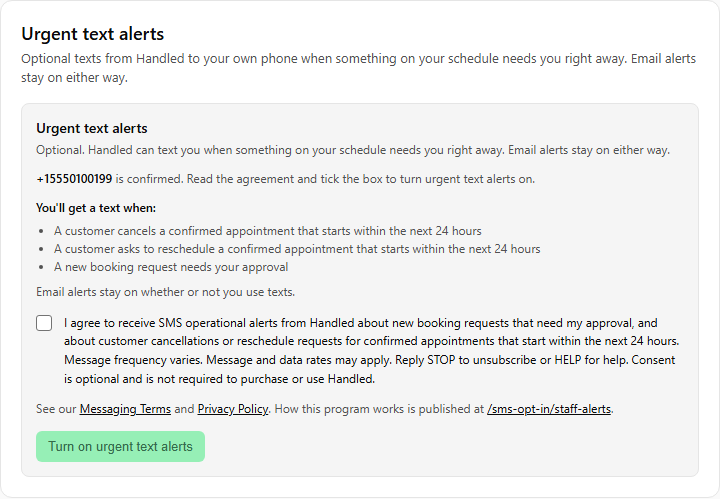
Screenshot of the Handled settings screen. Faithful representation of the consent_missing state with a fictional 555 number that no carrier routes. No real person, business, or phone number appears; no verification code was sent. Step 5. Urgent text alerts on, and how they are turned off
The enabled screen names the number, lists what qualifies, shows this month's allowance, and offers one control that turns alerts off — no support request, no waiting period. Turning them off stops texts only; email alerts stay on.
Settings → Notifications → Urgent text alerts✓ Urgent text alerts
Urgent text alerts are on for (•••) •••-••••.
You'll get a text when:
- A customer cancels a confirmed appointment that starts within the next 24 hours
- A customer asks to reschedule a confirmed appointment that starts within the next 24 hours
- A new booking request needs your approval
Texts are in addition to email alerts. Your email alert settings are not changed.
Texts this month: 0 of 100 used. Resets on the first of next month.
Turning these off stops texts only. Your email alert settings are not changed.
Turn off urgent text alertsNon-interactive representation of the secured settings screen. Nothing shown here is a working control, and no demonstration value is a real number or a real person. Step 6. After a STOP reply
Replying STOP from the handset ends texts to that number, turns enrollment off in Settings, and keeps saved category preferences. Text START to unblock the carrier. Handled restores enrollment only when it can confirm that START came after STOP and prior consent still covers the current program. START does not create enrollment for an unknown number and does not undo a Settings opt-out — those cases need Settings consent under the current disclosure. A Settings toggle cannot clear a live carrier STOP until START is texted.
Settings → Notifications → Urgent text alertsUrgent text alerts
You replied STOP to Handled's texts, so texts to this number are off. Text START to the number the texts came from. Alerts resume only if Handled can confirm that START came after STOP and your prior consent still covers the current program. If Settings shows alerts off, turn them on here under the disclosure. Your email alert settings are unchanged.
Non-interactive representation of the secured settings screen. Nothing shown here is a working control, and no demonstration value is a real number or a real person.
Stopping the messages
Reply STOP to any staff alert and texts to that number end. The carrier blocks further messages from this sender, and Handled records the STOP, turns enrollment off in Settings, and keeps your saved category preferences (including any you turned off individually). To receive alerts again, text START or UNSTOP to the sender. That unblocks the carrier. Handled restores enrollment and those saved preferences only when it can confirm that START came after STOP, you were previously enrolled, and consent still covers the current program. START does not create enrollment for a number that was never enrolled, and it does not undo a separate opt-out made in Settings — in those cases turn alerts on under Settings after reading the current disclosure. HELP changes neither enrollment nor preferences.
The same end-state can be reached from the account: switching text alerts off in notification settings ends every subject at once without a carrier STOP. Neither route requires contacting support.
Getting help
Reply HELP to any staff alert. The HELP reply is sent by the messaging provider's keyword handling for this toll-free number and Messaging Service (including any branded Advanced Opt-Out HELP text configured there). Handled does not send a second HELP SMS for the same keyword. Help is also available by email at support@handleddesk.com, and on the Help Center.
Program summary
- Program name
- Handled Urgent Text Alerts
- Operated by
- Handled Technologies LLC
- Who receives messages
- Only signed-in owners and admins of a business that uses Handled, and only after that person enters their own mobile number, confirms it with a one-time code, and ticks the consent box on their own account.
- Message type
- Operational notifications about the recipient's own schedule: a new booking request that needs their approval, or a customer cancellation or reschedule request for a confirmed appointment that starts within the next 24 hours. Not marketing, not promotional, and never sold or shared for anyone else's advertising.
- How consent is collected
- Inside the authenticated product, by the recipient, with the full disclosure on screen beside the control. Never on a public page, never by import, and never on someone else's behalf.
- How consent is withdrawn
- Reply STOP to any message, or switch text alerts off in Settings. Either one ends them.
- Message frequency
- Varies with the business's own schedule. There is no scheduled send. Hard ceilings: at most 10 texts per recipient per day and 100 per business per month, with no overage.
- Sending status
- Enrollment and STOP handling are implemented in product. Outbound owner-alert SMS (including the enrollment confirmation) send only after Handled's alert number is configured and carrier-approved for sending. Delivery can remain disabled while consent is still collectible.
- Cost
- Handled charges nothing for alerts. Message and data rates may apply from the carrier.
- Help and opt-out keywords
- Reply HELP for help (provider Advanced Opt-Out / carrier keyword reply; Handled does not duplicate it); reply STOP to stop.
Terms and privacy
Staff alerts are governed by our Terms of Service and our Privacy Policy, which governs personal data across Handled, including a mobile number saved for these alerts. Turning text alerts off in notification settings stops every alert at once. Our Messaging Terms cover text messaging across Handled generally.
About this page
Published so the consent flow for staff alerts can be reviewed without a Handled account, because the real flow is behind a sign-in and a reviewer has no way to reach it. It describes that flow and does not perform it: there is no form, no field and nothing to submit on this page, and no phone number can be given to Handled here.